
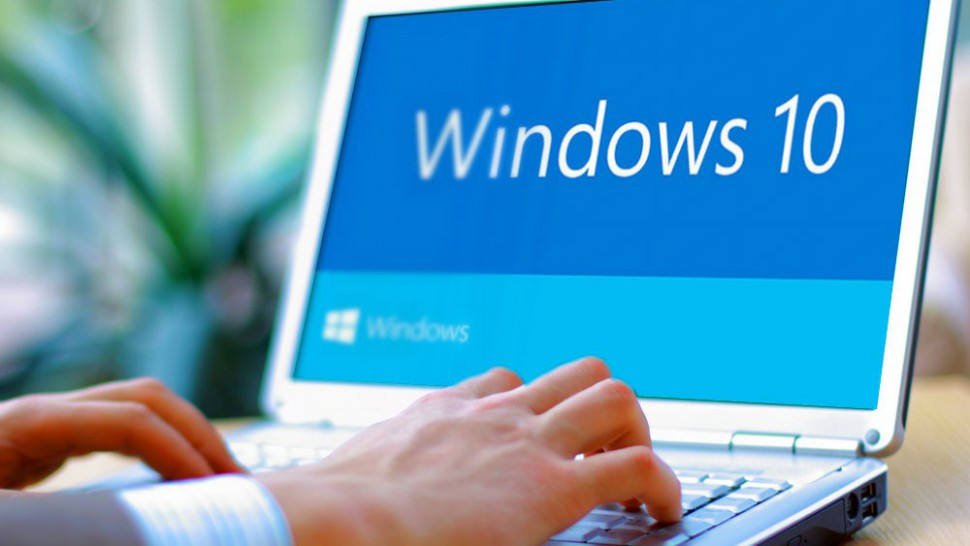
Imagine you're at the wheel of a car that's served you well for many years. It's familiar, reliable, and comfortable. But on the horizon, you see the silhouette of a newer, sleeker, more efficient model. You know that the time will come to make the switch, to say goodbye to the old and hello to the new. This is the journey that Windows 10 users are currently facing, with the retirement of this stalwart operating system (OS) and the introduction of the more advanced and feature-packed operating system, Windows 11.
Understanding the Legacy of Windows 10
Windows 10, our proverbial 'vehicle,' has been the reliable partner of millions of users since its advent in 2015. The system garnered a reputation for being a dependable companion, known for its user-friendly interface, fortified security features, and compatibility, successfully making it an upgrade from the previous Windows 8.1. Windows 10 has given us a stable digital environment, becoming an integral part of our daily life and professional work.
The Evolution of Windows 10
Launched with a bang in July 2015, Windows 10 marked a pivotal milestone in the chronicles of Microsoft's OS innovations. It arrived bearing a bundle of enhancements and features that elevated the user experience significantly. Users embraced features like the revamped Start Menu, the new Microsoft Edge web browser, Cortana, the virtual assistant, and superior security features. Microsoft's commitment to updating the system regularly, to keep it secure and efficient, led to Windows 10's immense popularity and critical acclaim.
The Retirement Timeline for Windows 10
In 2021, Microsoft disclosed their plan to retire support for Windows 10 by October 14, 2025. Post this date, Windows 10 will stop receiving updates and support. This lack of technical support exposes users to potential security threats and issues related to outdated software. Consequently, it becomes critical for users to consider migrating to the next-generation Windows OS.
The Move to Windows 11
Life teaches us that every ending is the starting point of something new. The impending retirement of Windows 10 signifies the onset of its successor, Windows 11. This next phase in Microsoft's OS journey brings along a plethora of impressive features and enhancements that aim to provide an elevated user experience.
Why Consider Upgrading to Windows 11?
Keeping your OS updated with the latest versions is crucial for several reasons. Primarily, it ensures that your system is equipped with the most up-to-date security features, safeguarding your computer against potential threats. Secondly, newer operating systems usually bring along improved functionality and better performance. Windows 11 aligns with this expectation, promising a variety of features designed to optimize user experience.
Notable Features and Enhancements in Windows 11
Windows 11 comes with a series of new features, including a centralized Start Menu, built-in Microsoft Teams chat, innovative ways to multitask (like Snap layouts and Snap groups), a new Microsoft Store, and seamless integration of Android apps into the system. In addition, it promises enhanced performance with faster updates and extended battery life for laptops, creating an all-around improved computing experience.
System Requirements for Windows 11
Before taking the leap into the world of Windows 11, it's vital to ascertain whether your current system can support the upgrade. Windows 11 carries a list of hardware requirements that your computer must meet to handle the new OS.
Overview of the Basic Specifications
The foundational hardware prerequisites for Windows 11 include a compatible 64-bit processor, at least 4 GB of RAM, 64 GB or more of storage, a DirectX 12 compatible graphics card or an integrated GPU, and a high-definition (720p) display larger than 9 inches diagonally, among other requirements.
Checking Your Computer's Compatibility
Microsoft offers a PC Health Check tool that users can download to determine if their system is compatible with Windows 11. This utility assesses whether the PC fulfills the minimum system requirements for the new OS and provides an informative report.
How to Prepare for the Upgrade to Windows 11
Transitioning to a new OS can seem like a daunting task, but with the correct preparation, it can be an effortless journey.
Steps to Ensure a Smooth Transition
Before proceeding with the upgrade, make sure to back up all your data. Updates may also be required for your system's drivers and BIOS. Once these steps are completed, you can use Windows Update to install Windows 11, marking your entrance into a new era of digital experiences.
Common Challenges and Solutions
While upgrading, you may encounter certain challenges like compatibility issues or installation errors. Microsoft provides comprehensive support and troubleshooting guides that offer solutions to these problems, ensuring a seamless transition to Windows 11.
Embracing the New Windows 11 Era
Just as our reliable services at Heartland Computer, Windows 10 has served its users exceptionally well. However, with the retirement of Windows 10 and the advent of Windows 11, it's time to welcome the future. This new era teems with exciting advancements, improvements, and promises of an even more immersive user experience. Prepare yourself for this transition and look forward to the dawning of a new day with Windows 11. Contact us to upgrade your operating system to Windows 11.
Frequently Asked Questions
When will Windows 10 officially retire?
Windows 10 is slated to retire on October 14, 2025.
Is it necessary to upgrade to Windows 11?
While it's not immediately required, an upgrade is recommended for long-term use due to the scheduled end of support for Windows 10.
What new features does Windows 11 bring?
Windows 11 introduces an array of new features, including a centralized Start Menu, integrated Microsoft Teams chat, and the integration of Android apps, among other enhancements.
How can I check if my PC can run Windows 11?
You can use Microsoft's PC Health Check tool to verify your PC's compatibility with Windows 11.
What should I do before upgrading to Windows 11?
Before upgrading, ensure that you back up your data, update your drivers and BIOS, and check your system's compatibility with Windows 11.
















Join the conversation
Questions about this article? Ask below — our team reads every comment.