
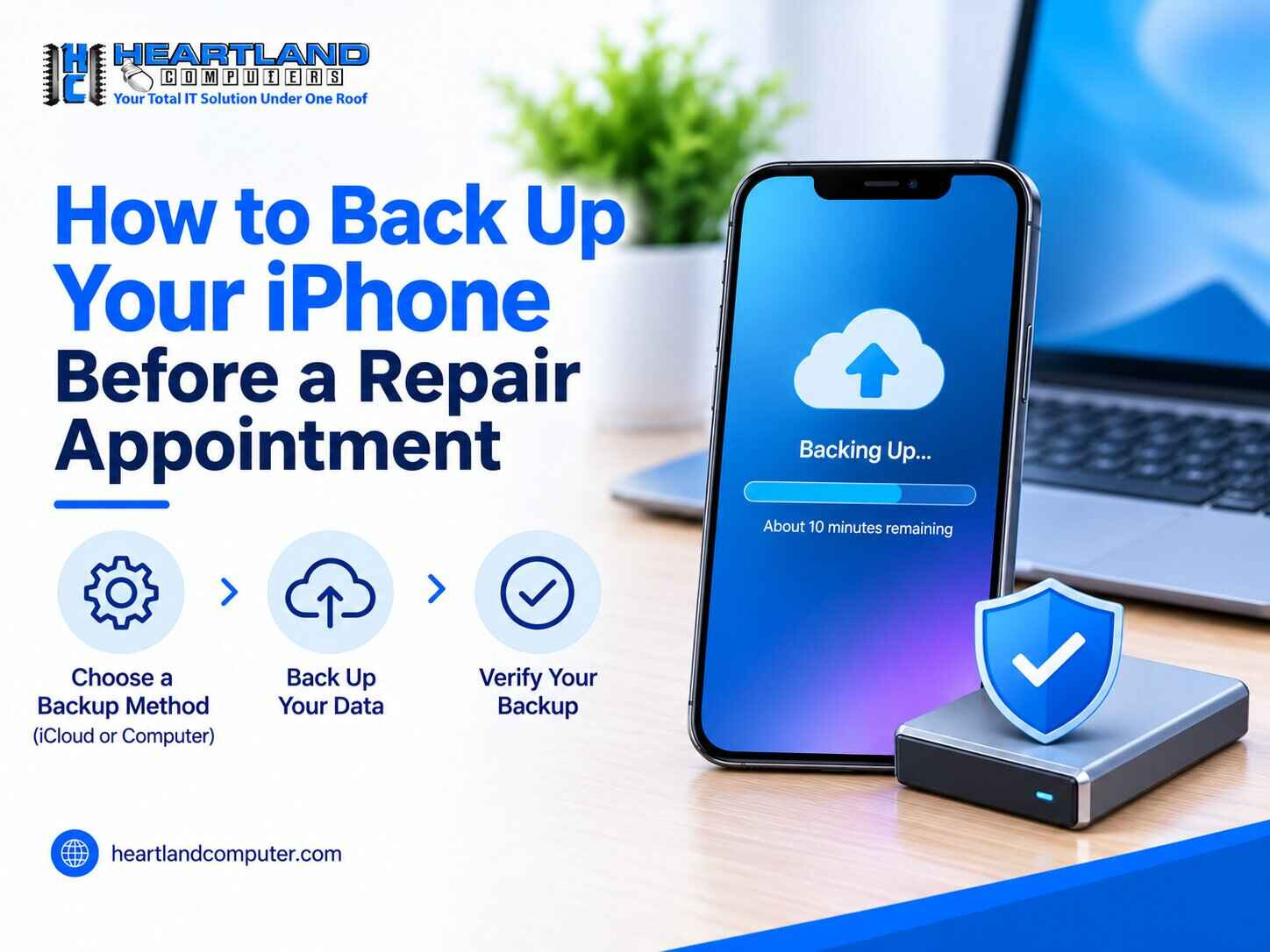
Yes, if your iPhone still turns on and connects to Wi-Fi or a computer, back it up before bringing it in for repairs. Use iCloud Backup for an automatic cloud copy or build a PC backup for a more complete local copy. Confirm the backup is complete, safeguard account access, and ask the repair provider what access is required.
Key Takeaways
- A repair can involve software work or a device reset, so a fresh backup is the safest preparation.
- iCloud Backup and a Mac or Windows backup each have strengths. Using both gives the most protection.
- An encrypted computer backup can include Health data and saved Wi-Fi passwords that an unencrypted backup leaves out.
- Never share your Apple Account password or verification codes. Ask the provider before turning off Find My.
- If the iPhone will not turn on, has liquid damage, or has failing storage, a backup may not be possible. Call before trying anything risky.
Why Back Up Your iPhone Before a Repair?
Most repairs go smoothly, but some involve more than swapping a part. A technician may need to update or reinstall iOS, change settings, or restore the phone to factory condition. In rare cases, the device cannot be restored to its earlier state.
A current backup protects what is hard to replace: photos, videos, contacts, messages, app data, settings, and, where supported, account access. It lets you restore to the same iPhone or a replacement.
A backup is not always possible. If the iPhone will not turn on, has severe liquid damage, or has storage or hardware failure, it may not be able to complete one. In that case, stop and talk to a technician before trying anything else.
This guide covers only the backup steps. To decide whether to fix or replace the phone, see our guide on when to troubleshoot, repair, or replace your device. If you already know it needs service, see our iPhone repair services in Omaha and Council Bluffs.
What Should You Back Up Before an iPhone Repair?
Not every item is included in every backup. What gets saved depends on your iCloud settings and on whether a computer backup is encrypted.
|
Data type |
Usually included in iCloud Backup |
Best extra protection |
|
Photos and videos |
Depends on iCloud Photos settings |
Verify iCloud Photos or copy to computer |
|
Contacts |
Yes, if synced to iCloud |
Export or verify contacts |
|
Messages |
Depends on Messages in iCloud |
Computer backup |
|
App data and settings |
Usually included in device backup |
Encrypted computer backup |
|
Health data |
May require encrypted backup |
Encrypted computer backup |
|
Wi-Fi passwords |
May require encrypted backup |
Encrypted computer backup |
|
Wallet, Apple Pay, and cards |
May require re-adding after restore |
Keep card details secure; do not share passwords |
|
Two-factor authentication |
Requires account access and trusted device/code |
Save recovery codes securely |
Apple states that an unencrypted computer backup does not include saved passwords, Health data, Wi-Fi settings, call history, or website history. An encrypted backup can include them, but it still leaves out Face ID, Touch ID, and passcode data, so you may need to set those up again after a restore. Source: Apple Support, About encrypted backups.
How to Back Up Your iPhone with iCloud
iCloud Backup is Apple's cloud service that copies your iPhone's data and settings to your Apple Account over Wi-Fi so you can restore it later.
- Connect to a stable Wi-Fi network.
- Plug the iPhone into power.
- Lock the screen.
- Go to Settings > [Your Name] > iCloud > iCloud Backup.
- Turn on Back Up This iPhone.
- Tap Back Up Now.
- Stay connected until the backup finishes.
- Confirm the date and time under Last Successful Backup.
Note: Apple recommends backing up before a service appointment and checking that your iCloud features have finished syncing. See Apple Support: Prepare your iPhone or iPad for service and How to back up your iPhone. If iCloud storage is full, buy more temporarily or use a computer backup instead.
How to Back Up Your iPhone to a Mac
- Update macOS if needed.
- Connect the iPhone to the Mac with a cable.
- Tap Trust on the iPhone if prompted, and enter your passcode.
- Open Finder.
- Select your iPhone in the sidebar.
- Click General.
- Choose Back up all of the data on your iPhone to this Mac.
- Optionally, select Encrypt local backup and create a password.
- Click Back Up Now.
- Wait for it to finish, then eject the iPhone safely from Finder.
An encrypted backup is a computer backup protected by a password you choose. Computer backups are not encrypted by default, but once you turn encryption on, Apple says later backups for that iPhone are encrypted automatically, and a lock icon in Finder confirms it. Write the password down and keep it safe, because a forgotten password may make the backup unusable. On macOS Mojave or earlier, use iTunes instead of Finder.
How to Back Up Your iPhone to a Windows PC
Current Windows PCs may use the Apple Devices app, while older setups still use iTunes. Use whichever your PC supports.
- Install or update the Apple Devices app (or iTunes, as applicable).
- Connect the iPhone with a cable.
- Tap Trust on the iPhone if prompted.
- Open Apple Devices or iTunes.
- Select the iPhone.
- Choose Back Up Now.
- Optionally, encrypt the backup with a password you will remember.
- Wait for it to finish and confirm the latest backup date.
Make sure the PC has enough free disk space. If it does not recognize the iPhone, try another cable or port.
Should You Use iCloud Backup or a Computer Backup?
iCloud Backup stores your data in Apple's iCloud and is best for an automatic, wireless backup. It needs Wi-Fi, power, and enough iCloud storage. A Mac or Windows backup stores your data on your computer and is best for a fuller local copy, including encrypted sensitive data. It needs a cable, a computer, and enough free storage.
For photos and messages, iCloud Backup depends on whether iCloud Photos and Messages in iCloud are turned on. A computer backup can include both in the device backup. Use both when you can. If you have time for only one, pick the one you can finish and verify today.
To confirm a backup finished, check the date: Last Successful Backup in iCloud settings, or the latest backup date in Finder, Apple Devices, or iTunes. For photos, contacts, and notes, sign in at icloud.com or another signed-in device to confirm recent items appear.
How Do You Prepare Find My, Your Apple Account and Two-Factor Authentication?
Find My is Apple's service for locating a lost iPhone, and it includes Activation Lock, which stops anyone else from erasing and reactivating your phone without your Apple Account. Two-factor authentication adds a second check to your Apple Account: after your password, you confirm with a verification code sent to a trusted device or phone number.
- Confirm your Apple Account email and password. If unsure, sign in at account.apple.com first.
- Make sure you can receive verification codes on a trusted device or number.
- Do not share your Apple Account password or verification codes with anyone, including anyone who contacts you claiming to be from a repair provider or Apple.
- Ask the provider whether Find My must be turned off for your specific repair.
- Do not turn off Find My unless the provider confirms it is necessary.
Pre-Repair Checklist for Your iPhone
- Charge the iPhone.
- Complete an iCloud Backup.
- Complete a computer backup if possible.
- Confirm the backup date and time.
- Verify that important photos and contacts are saved.
- Check the Messages in iCloud status.
- Save two-factor recovery access.
- Remove the SIM card only if the repair provider advises it.
- Remove the case and accessories if instructed.
- Write down the issue, when it started, and any drop, liquid, or update history.
What If Your iPhone Will Not Back Up Before Repair?
Check these common causes first:
- Insufficient iCloud storage
- Poor Wi-Fi connection
- iPhone not charging
- Outdated iOS
- Apple Account sign-in issue
- Computer not trusted
- Cable or port issue
- Device too damaged to complete a backup
Stop forcing repeated backups if the iPhone is overheating, swollen, smoking, or liquid damaged. Repeated attempts can worsen a hardware problem, and a swollen or hot battery is a safety concern. Power it off if that is safe, and call a technician.
Heartland Computer can discuss data backup and recovery options with you. Recovery cannot be guaranteed without assessing the device. To understand what causes data loss and what recovery involves, read our Data Loss & Recovery guide.
What Not to Do Before an iPhone Repair
- Do not share your Apple Account password or verification code.
- Do not attempt to open the iPhone.
- Do not use rice or heat for liquid damage.
- Do not keep charging a swollen, extremely hot, or smoking device.
- Do not delete data assuming a repair shop can recover it.
- Do not rely on one backup method only.
How Heartland Computer Helps Before an iPhone Repair
Customers in Omaha and Council Bluffs can bring the iPhone to a store, book an appointment, request on-site support, ask about remote support where appropriate, and discuss iPhone repair and data backup or recovery options. Bring the phone, your charger and cable, your notes on the problem, and access to your Apple Account email and trusted phone number (never your password or codes).
Before your repair appointment, make sure your photos, messages, and account access are protected. Book an iPhone repair appointment with Heartland Computer. You can also learn about our data backup and recovery support.
From the repair bench:
Before an iPhone repair appointment, the most common backup issue we see is one that has never been validated. Customers frequently assume iCloud has been saving automatically, only to discover that the last successful backup was weeks ago, iCloud storage is full, or iCloud photographs was not enabled for the photographs they wished to protect.
Backups are also frequently interrupted due to unstable Wi-Fi, a low battery, or ongoing use during the backup. Before bringing your iPhone in, connect it to power and dependable Wi-Fi, begin the backup, and ensure that Settings displays the current "Last Successful Backup" time. If the phone won't switch on, has liquid damage, or is overheating, stop attempting to force a backup and bring it in for a diagnosis.
FAQs About Backing Up an iPhone Before Repair
Q. Should I back up my iPhone before getting it repaired?
Yes, if the phone still turns on and can connect to Wi-Fi or a computer. Even a repair that seems minor can involve software work or a reset. A recent backup protects your photos, contacts, messages, and settings.
Q. How do I back up my iPhone before a repair appointment?
Use iCloud Backup (Settings > [Your Name] > iCloud > iCloud Backup > Back Up Now), or connect the phone to a Mac or Windows PC and back it up there. For the best protection, do both and confirm each one finished.
Q. Does iCloud backup include photos and messages?
It depends on your settings. If iCloud Photos or Messages in iCloud is on, those items sync to iCloud separately instead of being stored only in the device backup. If they are off, photos and messages may be included in the device backup. Check your settings and let syncing finish.
Q. How do I know my iPhone backup is complete?
For iCloud, check the date and time under Last Successful Backup. For a Mac or Windows PC, check the latest backup date in Finder, Apple Devices, or iTunes. The date should be today's.
Q. Should I back up my iPhone to iCloud or a computer?
Ideally both. iCloud is convenient and automatic. A computer backup gives you a local copy, and an encrypted one can include Health data and saved Wi-Fi passwords.
Q. Do I need to turn off Find My iPhone before repair?
Not always. Some repairs need it off and others do not. Ask the repair provider about your repair, and do not turn it off unless they confirm it is necessary.
Q. What should I remove from my iPhone before repair?
Only what the provider asks for. That may include the case, accessories, and sometimes the SIM card. Do not delete photos, messages, or apps in the hope of protecting them. Back up first.
Q. Can a repair shop access my photos and messages?
A technician may need to unlock the phone to test it, which could expose its contents. Ask the provider how they handle customer data and privacy and only share your passcode if it is needed. Never share your Apple Account password or verification codes.
Q. What if my iPhone will not back up before repair?
Check storage, Wi-Fi, power, iOS version, account sign-in, cable, and computer trust. If the phone is hot, swollen, smoking, or liquid damaged, stop and call a technician instead of retrying.
Protect Your iPhone Data Before Your Repair Appointment
Heartland Computer can help Omaha and Council Bluffs customers prepare for iPhone service, assess repair options, and discuss data backup or recovery support when needed.
Book an appointment or call our Omaha or Council Bluffs location.
Omaha- 402-502-7040 | Council Bluff- 712-256-8686
Sources:
- Apple Support, Prepare your iPhone or iPad for service
- Apple Support, How to back up your iPhone
- Apple Support, About encrypted backups on your iPhone, iPad, or iPod touch
Disclaimer: General information only. Backup and recovery outcomes depend on device condition and cannot be guaranteed without assessment.



















Join the conversation
Questions about this article? Ask below — our team reads every comment.