
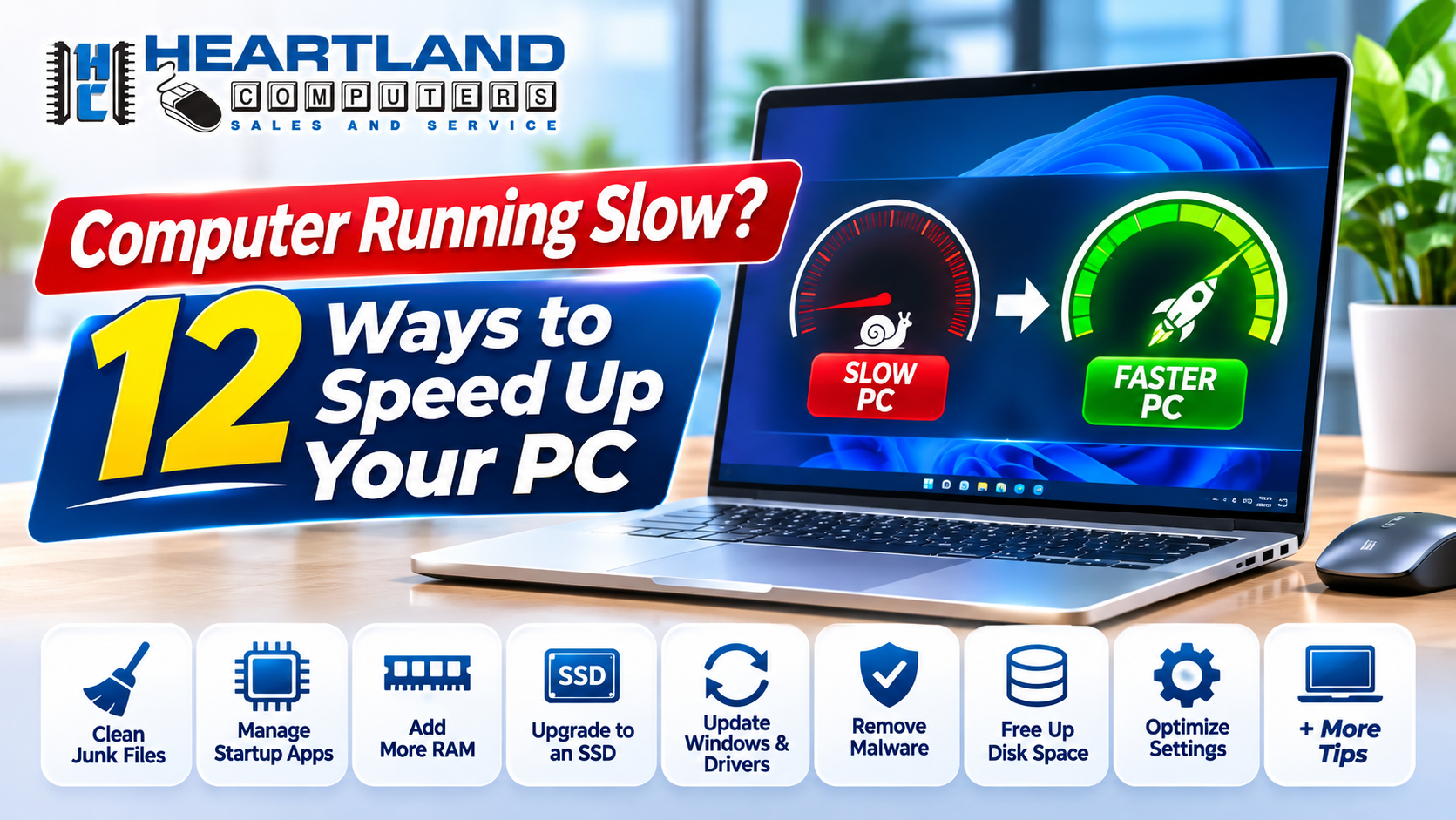

A computer running slow can interrupt work, school, and everyday tasks. The cause might be a crowded startup, nearly full storage, too many browser tabs, malware, or aging hardware. Try these steps in order. Many are simple, and you can stop when your PC feels better.
If you would rather have a technician take a look, contact Heartland Computer for a free diagnostic and straightforward guidance. We help home users and small businesses in Omaha and Council Bluffs.
1. Restart your computer properly
Closing the lid or choosing Sleep is convenient, but it does not fully restart your PC. A proper restart closes running processes and can finish installing updates.
- Save your work and close open apps.
- Select Start > Power > Restart.
- Let Windows finish starting before reopening your usual apps.
Try a restart first if your PC has been running for days or feels unusually sluggish.
2. Disable unnecessary startup apps
Some programs open automatically when you sign in, even if you rarely use them. Too many can slow startup and keep using resources in the background.
- Press Ctrl + Shift + Esc to open Task Manager.
- Select Startup apps.
- Review the list and look at each app’s Startup impact.
- Select an app you recognize and do not need immediately, then choose Disable.
Leave security software and anything you do not recognize alone until you know what it does. Microsoft’s startup app guide has more detail.

3. Uninstall programs you no longer use
Unused apps take up storage and may run background services. Removing them can make more room for Windows and the programs you rely on.
- Open Start > Settings > Apps > Installed apps.
- Review the list for programs you no longer need.
- Select the three-dot menu beside an app and choose Uninstall.
Be careful with manufacturer utilities or apps you do not recognize. Also review your browser extensions and remove ones you no longer use. If you are not sure what a program does, leave it installed and ask for help.
4. Free up storage space
A nearly full drive can make Windows updates and everyday tasks harder to manage. As a practical target, try to keep around 15 to 20% of your drive free when possible.
- Open Settings > System > Storage.
- Use Storage Sense or Cleanup recommendations to review temporary files and other cleanup options.
- Empty the Recycle Bin.
- Check your Downloads folder and remove files you no longer need.
Review each cleanup list before deleting anything, especially items in Downloads or cloud folders. You can also use Windows’ built-in Disk Cleanup. Microsoft explains these options in its guide to freeing up drive space.
5. Close extra browser tabs and extensions
Web browsers can use a lot of memory, especially when many tabs and add-ons are open. Close tabs you are finished with and remove extensions you no longer need.
If you rely on a tab, bookmark it first. Then close a few at a time and see whether the computer responds more quickly. You do not have to give up your favorite browser. A smaller number of open tabs can make a noticeable difference.
6. Update Windows, drivers, and your software
Updates can include security improvements, bug fixes, and performance changes. On Windows 11, regular updates help keep your system current.
- Open Settings > Windows Update.
- Select Check for updates and install available updates.
- Restart if Windows asks you to.
- Update regularly used apps through their own built-in update tools.
For optional driver updates, check Windows Update > Advanced options > Optional updates. Only install updates that apply to your device. Microsoft’s PC performance guide walks through update steps.
7. Scan for malware and adware
Sluggish performance can be one sign of malware, though there are many other possible causes. A scan is a sensible step if you also notice unfamiliar pop-ups, browser changes, or programs you did not install.
- Open Windows Security.
- Select Virus & threat protection.
- Choose Quick scan. If you still have concerns, consider a full scan.
Some threats, including rootkits and keyloggers, can require a deeper review than a basic scan. Avoid downloading unfamiliar “PC cleaner” tools that promise instant results.
Heartland Computer’s virus and malware removal service is $135 and includes unwanted software removal, browser cleanup, and hard drive optimization. Ask us about malware help or contact us if you are unsure what to do next.
8. Reduce visual effects
Animations and transparency effects can use resources on older computers. Turning some off may make Windows feel more responsive.
- Select Start and type Adjust the appearance and performance of Windows.
- Open the matching setting.
- Under Visual Effects, choose Adjust for best performance.
- Select Apply.
This changes Windows’ appearance, so you can also switch back or choose which effects to keep.
9. Check your power plan
Power-saving settings can limit performance to help conserve battery. On a desktop, check whether the current plan is holding the computer back.
In Windows 11, go to Settings > System > Power & battery > Power mode. Choose Balanced for everyday use or Best performance when you need more speed and the computer is plugged in. Best performance uses more power and can make a laptop run warmer, so it may not be the best everyday choice on battery.
10. Consider an SSD upgrade
If your PC still has a mechanical hard drive, replacing it with a compatible solid-state drive (SSD) can be one of the biggest ways to improve startup and app-loading times. It is the most common upgrade we recommend for older computers that still use a traditional hard drive.
Before upgrading, back up important files and confirm the right drive will work with your system. Some computers need a particular size or connection type. Our technicians can check compatibility and handle the installation.

11. Add RAM if memory is consistently full
RAM is the computer’s short-term working memory. If it runs out, switching between apps can feel slow. For many everyday Windows PCs, 8 GB is a practical minimum, while 16 GB can offer more comfortable multitasking. Your needs depend on your computer and how you use it.
To check memory use, open Task Manager with Ctrl + Shift + Esc, then select Performance > Memory. If usage is often near full while you work, check whether your PC supports a RAM upgrade. Not every computer can be upgraded, so verify compatibility before buying parts.
12. Know when to get a professional diagnosis
If you have tried these steps and your computer is still running slow, there may be a hardware or software issue that needs closer inspection. Get help if you notice:
- Overheating, unusual fan noise, or sudden shutdowns
- Clicking sounds from a mechanical hard drive
- Frequent freezing or startup failures
- Malware that returns after cleanup
- Slow performance on a very old PC, even after basic maintenance
Stop using a drive that is clicking or showing signs of failure, especially if important files are not backed up. Continuing to use it could put your data at risk.
Heartland Computer provides free diagnostics and consultations. Our stated turnaround target is 48 hours, depending on the repair and parts availability. Loaner computers may be available for qualifying customers and services, subject to restrictions. We also offer real-time repair tracking through our iOS and Android apps.

Still dealing with a slow computer?
Heartland Computer offers computer cleaning and optimization, virus removal, SSD and RAM upgrades, and repair support tailored to your device and budget. Our locally owned team has served the area for more than 20 years, repaired over 50,000 devices, and maintains a 98% client satisfaction rate and an A+ BBB rating.
We also offer Silver, Gold, and Platinum repair maintenance plans at $149.50, $299, and $595. Plans include recurring system cleanings and infection scans. Contact us to confirm which plan fits your needs.
Call 402-502-7040 in Omaha or 712-256-8686 in Council Bluffs, or request a free diagnostic. We’ll review the problem, explain your options, and help you get back to work.



















Join the conversation
Questions about this article? Ask below — our team reads every comment.