
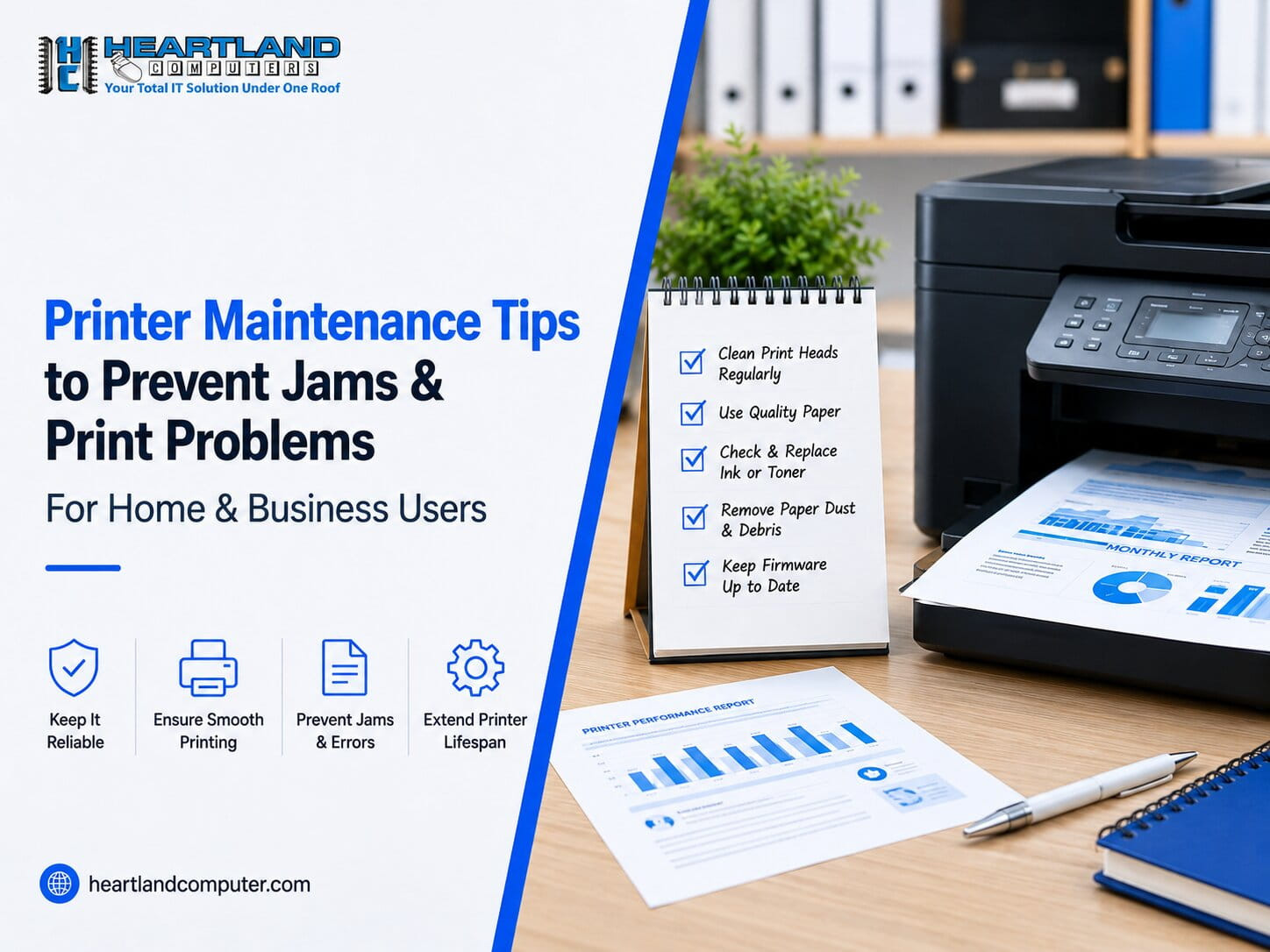
Regular printer maintenance keeps paper routes, rollers, printheads, and ink or toner systems in functioning order, which is the single most important factor in avoiding paper jams and print quality issues. Most printer problems can be avoided with a few regular behaviors, such as using the proper paper, cleaning critical components, and replacing old parts.
Key Takeaways
- Paper jams are typically caused by incorrect paper handling, inappropriate storage, or an overcrowded tray, rather than mechanical wear on the printer.
- The #1 hidden cause of repeated jams is dirty or worn rollers. Users can safely clean accessible rollers, but they should not disassemble the printer to access internal ones.
- Poor print quality (streaks, fading, smudging) is typically caused by insufficient or wrong ink or toner, a blocked printhead, or skipped cleaning cycles.
- Inkjets have built-in maintenance features (cleaning, alignment, calibration) that can help prevent repairs. However, it's important to follow manufacturer instructions to avoid wasting ink.
- Why Driver/firmware updates address software and connection issues, rather than mechanical issues such as worn rollers or gears.
- If you notice grinding noises, leaking cartridges, worn rollers, repeating error codes, or jams that remain despite basic maintenance, it's time to call a professional.
- Consistent preventative care is essential for business/high-volume printers, as downtime can significantly reduce production.
How Do You Prevent Printer Paper Jams and Poor Print Quality?
Use the proper paper and size, store it flat in a dry place, and prevent overfilling the tray. Keep the rollers and paper path dust-free, replace worn or low ink/tonner as soon as possible, and keep printer drivers and firmware up to date. If jams or quality issues persist following these measures, the culprit is most likely mechanical and requires professional evaluation.
Why Regular Printer Maintenance Matters
Dust and paper fibers accumulate on feed rollers with time, decreasing the grip required to draw paper through evenly. Worn rollers slip instead of holding, resulting in misfeeds, multiple feeds, and skewed pages. Paper stored in a humid or hot environment can absorb moisture, curl, or adhere together, which are all common reasons for jams and irregular feeding.
tiny difficulties rarely remain tiny. A dirty roller that causes occasional duplicate feeds today may wear unevenly and require replacement later. For businesses, this is even more important: a printer that fails during a busy period halts invoicing, shipping labels, or client documents, so regular maintenance is a productivity issue rather than a convenience.
10 Essential Printer Maintenance Tips
1. Use the Right Paper for Your Printer
Every printer is designed for a certain set of paper sizes and weights. Using paper that is too heavy, too light, or the wrong size for the tray guides increases the likelihood of jamming. One of the most common reasons for printer paper jams is damp, curled, or damaged paper, which does not feed uniformly through the rollers.
Avoid combining paper kinds or weights in the same tray; the rollers are calibrated for uniformity, and switching mid-stack can result in misfeeds. Practical tip: Before loading a new paper stack, fan the edges to separate sheets that have stuck together due to packaging pressure.
2. Store Printer Paper Properly
Paper absorbs humidity from the air, resulting in curling, stickiness, and static, all of which contribute to feeding issues. Keep paper in its original wrapper until use, store it flat rather than on edge, and avoid basements, garages, or areas near heat vents where temperature and humidity might fluctuate. Paper that has been sitting open in a humid environment is a common, sometimes unnoticed cause of repeated blockages.
3. Do Not Overfill the Paper Tray
Every tray has a maximum capacity, which is typically marked with a line or indicator. Overfilling adds extra strain to the feed rollers, which might draw numerous sheets at once or completely clog the entry point. Load paper so it is below the maximum line, square the stack against the tray guides, and ensure the guides are firm against the paper, not too tight to bend it, but just enough to prevent sideways drift.
4. Clean the Paper Path and Rollers
Dust, paper dust, and other debris accumulate on pickup and feed rollers over time, and this is one of the most effective ways a user may reduce clogs. With the printer turned off and unplugged, wipe the visible rollers with a lint-free cloth lightly wet with water (or isopropyl alcohol, if your handbook allows it).
Disassembling the printer to access internal rollers, removing covers that are not meant to be opened, or scraping debris with sharp instruments are all bad ideas. Deeper roller cleaning or replacement requires parts that are easily damaged without the proper equipment, which is where expert printer maintenance pays for itself.
5. Keep the Printhead or Toner Area Clean
Inkjet and laser printers age differently. If the printer is left inactive for an extended period, the inkjet printheads may dry down or become clogged with ink residue, resulting in streaks or missing lines in print. Laser printers use a toner cartridge and an image drum, and the most common issue is toner dust buildup inside the housing.
For both types, follow the manufacturer's recommended maintenance: built-in cleaning cycles for inkjets and cartridge reseating or replacement for lasers. Avoid touching the drum surface of laser cartridges or wiping inkjet printheads with anything other than what the manufacturer recommends; these components are sensitive and not intended for manual cleaning.
6. Replace Ink, Toner, and Other Consumables Correctly
One of the most common causes of fading printing is a lack of ink or toner, and it is usually the first item to look at. Always ensure that the cartridge is the correct model for your printer; an erroneous or badly positioned cartridge can cause streaks, error messages, or feed issues if it interferes with internal sensors.
Leaking cartridges should be replaced immediately since the ink or toner can contaminate the paper route and printhead. Cartridge quality varies between brands and suppliers, so if you observe inconsistent results after switching consumable brands, investigate before concluding that the printer has failed.
7. Run the Printer's Built-In Cleaning and Alignment Tools
Most printers offer built-in maintenance services such as printhead cleaning cycles, alignment tools, and test pages, which are often accessible through the printer's control panel or driver software. These tools are the most secure way to remove small streaks, fading regions, and slightly misaligned lettering.
Follow the manufacturer's instructions for how often to run cleaning cycles; on many inkjet machines, running cleaning cycles too frequently wastes ink without necessarily improving quality, because the ink is used to physically clear the nozzles rather than printing anything.
8. Keep Printer Drivers and Firmware Current
Outdated printer drivers can lead to compatibility issues with newer operating systems, periodic connection drops, and formatting flaws in printed documents. Firmware updates from the manufacturer can fix some software issues and enhance network stability for networked or wireless printers.
It's important to understand what firmware and driver upgrades can and cannot do: they address software and communication issues, not worn rollers, damaged gears, or other mechanical concerns. If a printer has a physical problem, changing the software will not solve it.
9. Avoid Ignoring Small Printing Problems
Certain symptoms should be addressed immediately rather than postponed: recurring paper jams in the same location, grinding or clicking noises, regularly slanted pages, streaks, smearing, faded regions, numerous sheets feeding simultaneously, or a printer that frequently goes offline. These are frequently early indicators of a developing mechanical or component problem.
Most common printer issues may be resolved with basic maintenance and proper paper handling. When the same condition persists after you've addressed paper, consumables, and cleaning, expert printer repair becomes the more efficient solution.
10. Schedule Preventive Printer Maintenance for High-Use Printers
Printers that are used on a regular basis, such as in offices, schools, workgroups, or high-volume home enterprises, wear down rollers, printheads, and internal components faster than an infrequent home printer. There is no one-size-fits-all maintenance plan for printers; the appropriate frequency is determined by print volume, printer model, environment, manufacturer recommendations, and whether or not the printer is exhibiting symptoms.
For businesses relying on a printer daily, scheduling periodic professional printer maintenance service catches roller wear and buildup before they cause downtime, rather than waiting for a failure during a busy week.
What Causes Printer Paper Jams?
Most printer paper jams trace back to one of the following:
- Incorrect paper size or type for the printer
- Damaged, curled, or damp paper
- An overloaded paper tray
- Paper loaded unevenly or against the guides incorrectly
- Dirty feed or pickup rollers
- Worn rollers that no longer grip paper properly
- Foreign objects or debris in the paper path
- Internal mechanical problems (gears, sensors, or feed mechanisms)
If a printer continues to jam in the same location after you've checked paper quality, tray loading, and roller cleanliness, the problem is most likely mechanical rather than something simple to fix at that point, having it professionally inspected saves time over troubleshooting. Heartland Computer's technicians can diagnose whether the issue is a simple fix or a sign of a worn part through professional printer repair.
Why Is My Printer Printing Poorly?
|
Problem |
Possible Cause |
First Step |
|
Faded printing |
Low toner/ink, print settings, clogged printhead |
Check consumables and print settings |
|
Streaks |
Dirty or clogged printhead/imaging components |
Run manufacturer-recommended cleaning |
|
Smudging |
Paper quality, toner/ink issue, or fuser/handling problem |
Check paper and consumables |
|
Missing areas |
Cartridge or printhead issue |
Run a test or cleaning cycle |
|
Crooked printing |
Paper feed or tray alignment issue |
Reload paper and inspect tray guides |
|
Repeated jams |
Rollers, paper path, or damaged paper |
Inspect and clean safely; seek service if recurring |
When Should You Call a Printer Repair Professional?
Some situations go beyond what routine maintenance can resolve:
-The printer repeatedly jams after basic maintenance and correct paper handling
- Pages consistently feed crooked, no matter how paper is loaded
- Rollers appear visibly worn, cracked, or glazed
- You hear unusual grinding or clicking noises during operation
- Print quality stays poor after cleaning cycles and fresh consumables
- Ink or toner is leaking inside the printer
- The printer displays recurring hardware error codes
- The printer has stopped feeding paper altogether
- Internal components look damaged or misaligned
- The printer is critical to daily operations, and downtime has a real cost
Any one of these is a reasonable point to bring in professional printer maintenance services rather than continuing to troubleshoot on your own.
When Printer Maintenance Isn't Enough
Homeowners and companies in the Omaha and Council Bluffs areas rely on printers daily, and even the best-maintained devices eventually suffer mechanical wear that regular cleaning cannot reverse. When jams, feed problems, or print-quality issues remain after following the maintenance measures outlined above, professional servicing is usually the fastest and most cost-effective option, particularly for a corporate printer where downtime affects invoicing, client papers, or day-to-day operations. It's also worth noting that some "printer" problems are connectivity or driver issues tied to the computer or network it's connected to, which is where computer repair services or IT support come in alongside printer-specific repair.
Still dealing with paper jams, poor print quality, or a printer that won't feed correctly? Heartland Computer can help diagnose the problem and provide professional printer repair and maintenance for home and business printers. Contact the team to discuss your printer's symptoms and find out the right next step.
FAQs
Q. How often should a printer be maintained?
There is no single fixed schedule; the frequency varies depending on print volume, printer model, and environment. Light-duty home printers may just require periodic cleaning, whereas high-volume office printers benefit from maintenance every few months or according to the manufacturer's recommendations.
Q. How do I prevent printer paper jams?
Use the appropriate paper type and size, store it flat in a dry place, prevent overflowing the tray, and keep the rollers and paper route clean. Recurring jams should be addressed immediately, as they often indicate a worsening mechanical problem.
Q. Why is my printer printing poorly?
Poor print quality is typically caused by insufficient or expired ink/toner, a blocked printhead, inadequate print settings, or worn image components. Running the printer's built-in cleaning and alignment tools eliminates many of these problems.
Q. What causes repeated paper jams?
Repeated jams are usually caused by unclean or worn rollers, the wrong paper, an overflowing tray, or debris in the paper path. If jams persist despite basic troubleshooting, a mechanical or internal component problem is likely.
Q. How do I clean printer rollers?
With the printer turned off and disconnected, carefully wipe the accessible rollers with a lint-free cloth soaked with water or the manufacturer's recommended cleaning. Avoid disassembling the printer to access the internal rollers; that level of cleaning is best left to a technician.
Q. Can printer maintenance improve print quality?
Yes. Cleaning the printhead region, refilling consumables appropriately, and using built-in alignment tools all address the most prevalent reasons of streaking, fading, and smudging.
Q. When does a printer need professional repair?
When jams, feed problems, or quality concerns persist after basic maintenance, or if you observe grinding noises, leaking cartridges, worn rollers, or repeating error codes, these are signs of mechanical problems that require hands-on diagnosis.
Q. Is printer maintenance necessary for businesses?
Yes. Business printers are used more frequently, and downtime has a direct impact on productivity invoicing, client papers, and daily workflow all rely on the printer to function properly. Preventive maintenance lowers the likelihood of unexpected failures during busy periods.
🛠️ Need Local Computer Repair in Omaha or Council Bluffs?
Don't stress over hardware failures or slow devices. Heartland Computer offers fast, reliable walk-in repairs with no appointment necessary! we help diagnose the problem and provide professional printer repair and maintenance for both home and business printers.
📞 Call Us:
Omaha- 402-502-7040
Council Bluff- 712-256-8686
📍 Visit Us: Stop by our Council Bluffs or Omaha repair shops today for immediate bench diagnostics.
Sources:
https://support.usa.canon.com/kb/s/article/ART180620
Disclaimer: The information in this article is provided for general educational purposes and reflects common, manufacturer-recommended printer maintenance practices. It is not a substitute for your specific printer's user manual, which should always take priority. Attempting internal repairs beyond basic, manufacturer-approved cleaning may avoid your warranty or cause damage. For persistent problems, mechanical issues, or anything involving internal components, consult a qualified technician.



















Join the conversation
Questions about this article? Ask below — our team reads every comment.