
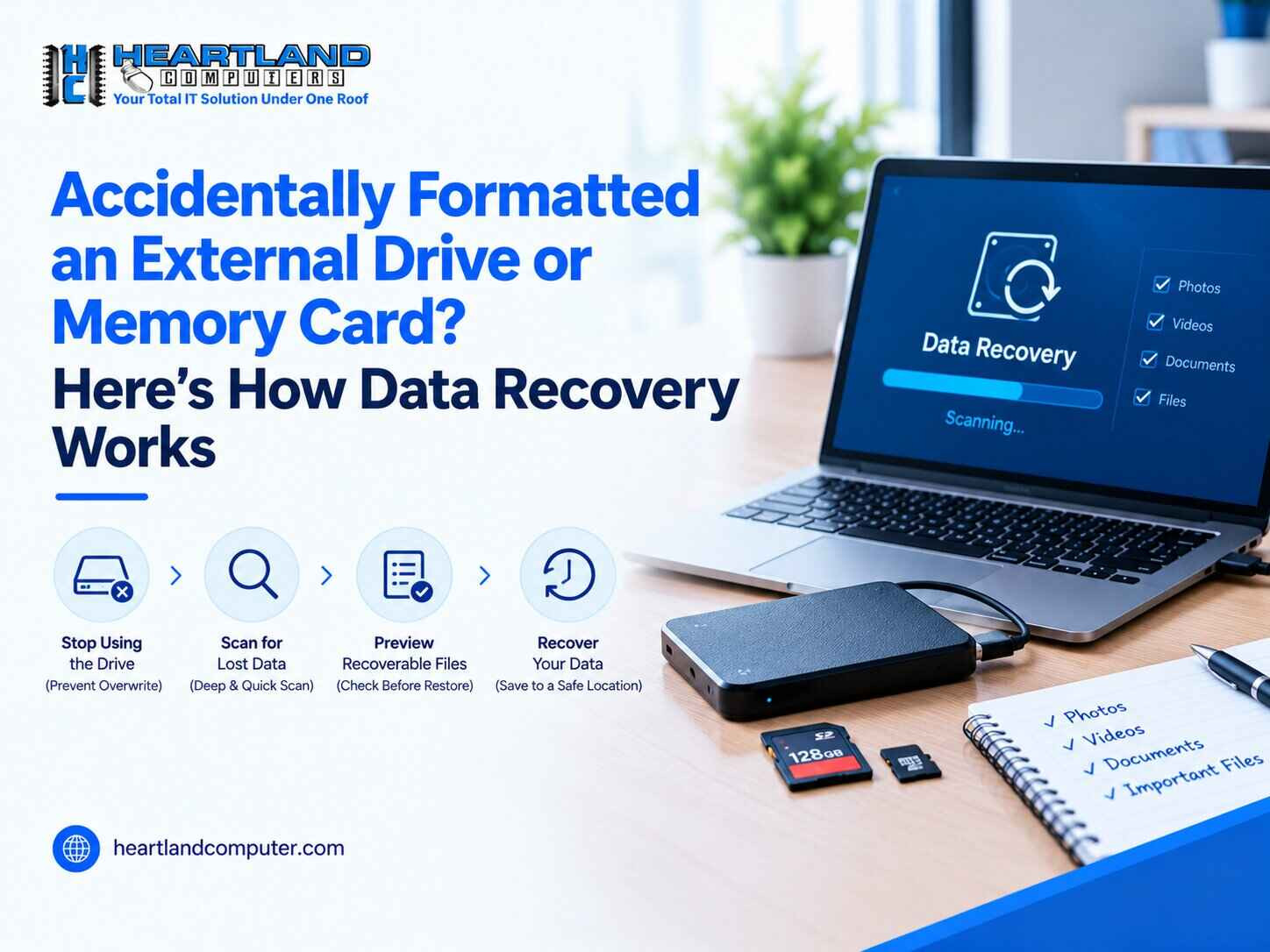
When an external drive or memory card is inadvertently formatted, files can frequently be recovered but only if the device hasn't been overwritten. Typically, a fast format removes the drive's "map" to your data rather than the actual files. The type of media, what transpired following the format, and the device's physical condition all affect whether your data is recovered.
Take a breath if you're feeling sick to your stomach while reading this. In Omaha, Council Bluffs, and throughout Nebraska, homeowners, photographers, students, and small company owners frequently report this kind of data loss. This guide begins there because the next five minutes are crucial.
Can data be recovered after accidental formatting?
Yes, most of the time. Recovery tools or a technician can often rebuild or carve files from the drive because a fast format usually removes the file system's index rather than the actual data. Overwrite activity, TRIM on SSDs, encryption, physical state, and previous recovery efforts all affect success.
Important disclaimer: There is no reliable source that can guarantee recovery outcomes. Your odds can be decreased by every write to the device, such as saving a file, snapping a picture, or using a "repair" program. This is not an assessment of your particular device; rather, it provides general information.
What Should I Do in the First 10 Minutes After Accidentally Formatting a Drive?
Stop using the device immediately. Don't use repair tools, unplug it securely, or save anything to it. Preventing new data from piling on top of the previous data is your aim for the first ten minutes.
7 Things to Do Immediately After Accidental Formatting
- Stop all activity on the drive. Don't copy, save, or shoot to it. If it's a camera card, turn off the camera.
- Safely eject or unplug it. Use "Eject" (Mac) or "Safely Remove Hardware" (Windows) so the system doesn't write final changes.
- Lock the card if it has a switch. SD cards have a write-protect tab that adds a layer of protection.
- Write down what happened. Note whether it was a quick or full format, which file system you chose (such as exFAT or NTFS), what computer or camera did it, and what was on the drive.
- Check for other copies. Look in cloud storage, email attachments, old laptops, phone backups, and the camera's second card slot.
- Keep the computer from touching the drive again. If the drive keeps auto-mounting, disconnect it. Don't let the operating system index it or "fix" it.
- Decide: DIY or professional. If the files are irreplaceable, or the device is an SSD or shows any physical symptoms, skip ahead to the professional section below.
5 Mistakes That Can Make Recovery Harder
⚠️ Warning: These are the most common ways a recoverable situation becomes a harder one.
- Saving new files to the formatted drive. New data can overwrite the exact sectors that held your old files.
- Formatting it again "to fix it." A second format, especially a full format or one with a different file system, can disturb more of the original structures.
- Running recovery software and saving results to the same drive. Recovered files must always go to a different drive.
- Running CHKDSK, First Aid, or other repair utilities. These tools modify the drive. Use them before recovery and you can change what's left to recover.
- Continuing to use a drive that is clicking, freezing, or disconnecting. Repeated read attempts on a failing drive can turn a recoverable situation into a difficult one.
What Does Formatting Actually Do to an External Drive, USB Drive, or SD Card?
Formatting prepares storage to hold new data by generating a fresh file system. The structures that specify where files are located are essentially rewritten by a fast format. Usually, not all data sectors are erased.
Consider a library. A fast format is like releasing a blank card catalog and discarding the old one. Although the volumes are still on the shelves, no one can locate them with ease. The old books are literally destroyed by the new ones that are overwritten on those shelves.
Does formatting permanently delete files?
Usually not. Although the file system structures are rewritten and space is marked as being available by a fast format, the underlying data frequently remains until it is overwritten. Recovery may be difficult or impossible due to a complete format, secure erase, or encryption key erasure. Your odds depend on which one happened and whether the drive was utilized later.
What gets erased and what often survives?
|
Component |
What it does |
What a quick format typically does |
|
Partition table |
Tells the computer how the drive is divided |
May be recreated or replaced |
|
File system (file allocation table, MFT, or catalog) |
Index of file names, locations, and folders |
Usually reset or rewritten |
|
File data (the actual photos, documents, videos) |
Your content, stored in sectors |
Often left in place until overwritten |
Quick format vs. full format
- Quick format: Rebuilds file system structures only. Fastest, and generally the more recoverable case.
- Full format: A full format on contemporary Windows also writes across the storage and looks for problematic sectors that could erase your data. Consider this a more difficult recovery situation.
- Changing file systems: Moving from FAT32 to exFAT, or NTFS to APFS, rewrites different structures. Data may still be present, but recovery usually relies more heavily on file carving.
Which file systems are involved?
|
File system |
Commonly found on |
Recovery notes |
|
FAT32 |
Older SD cards, USB flash drives, cameras |
Simple structure; file allocation table loss can fragment recovery |
|
exFAT |
Larger SD/microSD cards, modern cameras, cross-platform drives |
Common for photographers; fragmentation can complicate carving |
|
NTFS |
Windows external hard drives and SSDs |
Rich metadata can help rebuild folders and file names |
|
APFS |
Mac drives and SSDs |
Modern, snapshot-based; encryption and SSD behavior can affect outcomes |
Using a Mac? Our Mac data backup and recovery service covers APFS and other Mac-specific situations in more detail.
What Are Your Recovery Chances by Device Type?
Mechanical hard drives and SD cards tend to offer the best odds, while SSDs are the hardest. The table below shows general tendencies, not guarantees.
Can you recover files from a formatted external hard drive?
Yes, most of the time. If nothing new has been written, files on a mechanical external hard drive can often be retrieved because a rapid format typically deletes the file system's index rather than the actual data. The probabilities are reduced by complete format, encryption, or physical damage. Before attempting recovery, stop using the drive and create a sector-level image.
Can photos be recovered from a formatted SD card?
Usually, if the card hasn't been used before. On a formatted SD card, photos frequently stay there until they are overwritten by fresh ones. Don't save anything on the card, stop shooting, and take it out. Although outcomes differ depending on the condition of the card, recovery software or a lab can reconstruct the folder structure or carve photos by file signature.
Recovery chances by device type
|
Device |
General outlook after quick format |
Key variables |
|
External HDD |
Generally favorable |
Overwrite activity, drive health, full vs. quick format |
|
External SSD |
More variable and often harder |
TRIM, controller behavior, encryption |
|
USB flash drive |
Often favorable |
Low-quality controllers, heavy reuse, physical wear |
|
SD / microSD / camera memory card |
Often favorable if unused since formatting |
Continued shooting, card wear, fragmentation, camera behavior |
Why Is SSD Recovery Harder After Formatting?
SSDs actively clean up deleted data in the background, which can remove it permanently. Hard drives and SD cards generally leave old data in place; SSDs often don't.
Three behaviors drive this:
- TRIM: The SSD can be informed which blocks are no longer in use when the operating system formats or deletes. During background cleanup, the drive may then wipe certain blocks; once removed, they are usually unreadable.
- Wear leveling: To increase longevity, the SSD controller distributes writes among memory cells. Reconstruction becomes more difficult as a result of data not being stored where the file system appears to indicate.
- Controller behavior: The mapping between logical addresses and physical flash is controlled by the SSD controller. Certain controllers encrypt data by default; if the mapping or encryption key is lost, the data is also lost.
Is it harder to recover files from a formatted SSD than a hard drive?
Yes, most of the time. Soon after formatting, SSDs can permanently remove data by using TRIM and garbage collection to erase freed blocks in the background. Recovery is further complicated by wear leveling and controller behavior. Quickly shut down the SSD; the likelihood varies greatly depending on the brand, connection type, and operating system.
If you formatted an external SSD, power it down and avoid reconnecting it to the same computer. Every minute of power-on time gives the controller more opportunity to tidy up.
What Are Your Safe DIY Recovery Options?
DIY recovery is reasonable when the drive is healthy, the files aren't critical, and you can follow a few safety rules. It's risky when the device is failing or the data is irreplaceable.
Should I use recovery software after formatting a drive?
You can save recovered files on another drive only if the drive is in good condition. Logical data loss is best handled by software. Stop and get expert assistance if the drive clicks, disconnects, operates slowly, or displays errors. Repeated scans can exacerbate physical issues and limit what can be recovered.
4 Questions to Ask Before Using Recovery Software
- Is the drive physically healthy? No clicking, grinding, disconnecting, extreme slowness, or wrong capacity.
- Do I have a separate destination drive with enough space? Never recover onto the source drive.
- Is this an SSD? If so, TRIM may already have acted, and repeated power-on time may hurt your chances.
- Can I afford to lose these files permanently? If not, a professional evaluation is the safer path.
A safer DIY approach
- Disconnect the device and use a different computer if the original auto-write to it.
- Use a card reader for SD and microSD cards rather than the camera.
- If possible, make a disk image first and scan the image instead of the original device. Imaging is the safest foundation for any recovery.
- Choose reputable software with a read-only scan and a preview feature so you can check files before restoring.
- Save recovered files to a different drive. Always.
- Verify the files open correctly, especially photos and videos, which can recover partially.
Limitations of DIY recovery
- Software can lose original file names and folders when relying on raw recovery (file carving).
- Fragmented files, such as large videos, often come back damaged.
- Software can't fix physical drive failure, and attempting it may make things worse.
- Free tools may cap recoverable data, and any tool run directly on a failing device carries risk.
⚠️ When not attempting DIY: Stop here and obtain a professional evaluation if the drive makes strange noises, isn't detected consistently, reports the incorrect size, is an SSD with important data, or contains anything you can't replace.
How Does Professional Data Recovery Work?
Professional recovery protects the original device first, then works from a copy. The process is methodical and designed to avoid making anything worse.
- Evaluation. A technician evaluates the file system, device kind, symptoms, and incident. This establishes if the issue is physical drive failure (deteriorating hardware), logical data loss (a corrupted or formatted structure), or both.
- Disk imaging. A sector-by-sector copy of the media is produced by specialized hardware. Usually, imaging is done in a read-only fashion, meaning that all subsequent work is done on the image and the original is not altered.
- File-system and partition repair. To reconstruct the original folder structure and file names, technicians search for traces of the previous partition table, file allocation table, or other file system metadata.
- File carving (raw recovery). Carving extracts files from an image by searching for recognized file signatures, like the patterns that indicate the beginning of a JPEG, once metadata has been removed. Although names and folders could be lost, content is frequently recovered.
- Verification. Recovered files are checked to confirm they open and aren't corrupted.
- Secure return. Your information is treated carefully, and recovered data is sent to a clean target device.
Heartland Computer's data backup and recovery service follows this kind of structured approach, and it's the page to visit for service details and next steps.
What Are the Warning Signs You Need Professional Help Instead of Software?
If the device shows any physical symptoms, or the files truly matter, skip the software. Software assumes the hardware works. When it doesn't, scanning can cause additional harm.
6 Signs You Need Professional Data Recovery
- Clicking, grinding, or beeping from an external hard drive.
- The drive disconnects repeatedly or isn't recognized consistently.
- It shows the wrong capacity or appears as "RAW" or unallocated with errors.
- It's an SSD and the data is important, because time and power-on matter more here.
- You've already tried software and the results are incomplete, corrupted, or stalled.
- The files are irreplaceable, such as wedding photos, business records, or financial documents.
Not sure whether it's the drive or the computer? Our guide on laptop, desktop, and Mac problems to check before booking a repair can help you rule out simple causes without touching the affected media.
When should I use professional data recovery?
If the device is an SSD, the files are irreplaceable, it produces strange noises, disconnects, displays the incorrect size, or you've tried software without success, you should hire an expert. To preserve the original and increase your chances, experts first image the media read-only before working from the copy.
What Affects Whether Recovery Succeeds?
Five factors matter most. Understanding them sets realistic expectations.
- Media type: HDDs, flash drives, SD cards, and SSDs behave differently.
- Overwrite activity: New writes after formatting are the biggest threat.
- TRIM and controller behavior: Especially relevant for SSDs.
- Encryption: Encrypted media may be unrecoverable without the key.
- Physical condition and prior attempts: Failing hardware, repeated repair attempts, or multiple reformats reduce what's left.
Nobody can predict the results without inspecting the equipment, and you should be wary of anyone who promises a certain consequence before inspecting it.
How Can You Prevent Accidentally Formatting a Drive in the Future?
Back up first, label clearly, and slow down at the format prompt. Most accidental formats happen because of a rushed click or a confusing drive name.
- Keep a second copy of anything important. Follow the principles in our guide to protecting your important data.
- Label drives physically and digitally with names like "Wedding 2026 – Master."
- Read the format promptly carefully. When a card cannot be read, cameras and operating systems frequently display "Format"; however, this does not always indicate that the card is blank.
- Offload camera cards promptly, and don't reformat until files are verified in two places.
- Use the write-protect switch on SD cards when you're only reading.
- Don't format to fix a "not working" warning without first checking whether the data still matters.
When Should You Contact Heartland Computer?
Contact us as soon as you realize the drive or card has been formatted, and before you try anything else. Early contact preserves the most options.
If there are physical warning signals, the device is an SSD, the files are crucial, or you have already tried recovery, get in touch. Before you commit to anything, we'll assess the device, clarify what's practical, and lay out the next steps, whether you need Nebraska data recovery for a company drive or assistance with a student's misplaced project. The best thing you can do at this time is to stop using the device and call or bring it in if you've been looking for data recovery Omaha solutions following a formatting error.
Learn more about our data backup and recovery service.
Frequently Asked Questions
1. Can you recover files from a formatted external hard drive?
Yes, most of the time. If nothing new has been written, files on a mechanical external hard drive can often be retrieved because a rapid format typically deletes the file system's index rather than the actual data. The probabilities are reduced by a complete format, encryption, or physical damage. Before attempting recovery, stop using the drive and create a sector-level image.
2. Can photos be recovered from a formatted SD card?
Usually, if the card hasn't been used before. On a formatted SD card, photos frequently stay there until they are overwritten by fresh ones. Don't save anything on the card, stop shooting, and take it out. Although outcomes differ depending on the condition of the card, recovery software or a lab can reconstruct the folder structure or carve photos by file signature.
3. Does formatting permanently delete files?
Usually not. Although the file system structures are rewritten and space is marked as being available by a fast format, the underlying data frequently remains until it is overwritten. Recovery may be difficult or impossible due to a complete format, secure erase, or encryption key erasure. Your odds depend on which one happened and whether the drive was utilized later.
4. Should I use recovery software after formatting a drive?
You can save recovered files to a separate drive only if the drive is in good condition. Logical data loss is best handled by software. Stop and get expert assistance if the drive clicks, disconnects, operates slowly, or displays errors. Repeated scans can exacerbate physical issues and limit what can be recovered.
5. Is it harder to recover files from a formatted SSD than a hard drive?
Yes, most of the time. Soon after formatting, SSDs can permanently remove data by using TRIM and garbage collection to erase freed blocks in the background. Recovery is further complicated by wear leveling and controller behavior. Quickly shut down the SSD; the likelihood varies greatly depending on the brand, connection type, and operating system.
6. Can I recover files after reformatting to a different file system, like FAT32 to exFAT?
Sometimes. File data frequently survives when file systems are changed, but the index structures are rewritten, and more metadata may be overwritten than with a straightforward reformat. Typically, recovery depends on file carving or scanning for remaining structures. Since copying new files to the media poses the greatest risk to the original data, avoid doing so.
7. When should I use professional data recovery?
If the device is an SSD, the files are irreplaceable, it produces strange noises, disconnects, displays the incorrect size, or you've tried software without success, you should hire an expert. To preserve the original and increase your chances, professionals first image the media read-only before working from the copy.
Accidentally formatted a drive or memory card?
Stop using it and bring it to Heartland Computer. We recover lost photos, business files, and documents from formatted external drives, SD cards, and degraded SSDs.
Disclaimer: Data recovery outcomes vary by device, file system, and circumstances. Continued use of an affected device can reduce recovery chances, and Heartland Computer cannot guarantee recovery of any specific data before evaluating the media.



















Join the conversation
Questions about this article? Ask below — our team reads every comment.