

Your business network connects nearly everything you rely on each day: computers, printers, payment systems, cloud applications, phones, servers, security cameras, and customer information. When the network is secure, your team can work with confidence. When it is poorly configured or out of date, even a small problem can create unnecessary downtime.
The good news is that network security does not have to be confusing or overwhelming. With a few practical steps, you can reduce risk and create a stronger foundation for your Omaha or Council Bluffs business.
At Heartland Computer, we help local businesses design, secure, troubleshoot, and maintain their networks. If you need guidance, our friendly team is only a phone call away. We provide personalized recommendations, clear explanations, and practical solutions without unnecessary upselling.
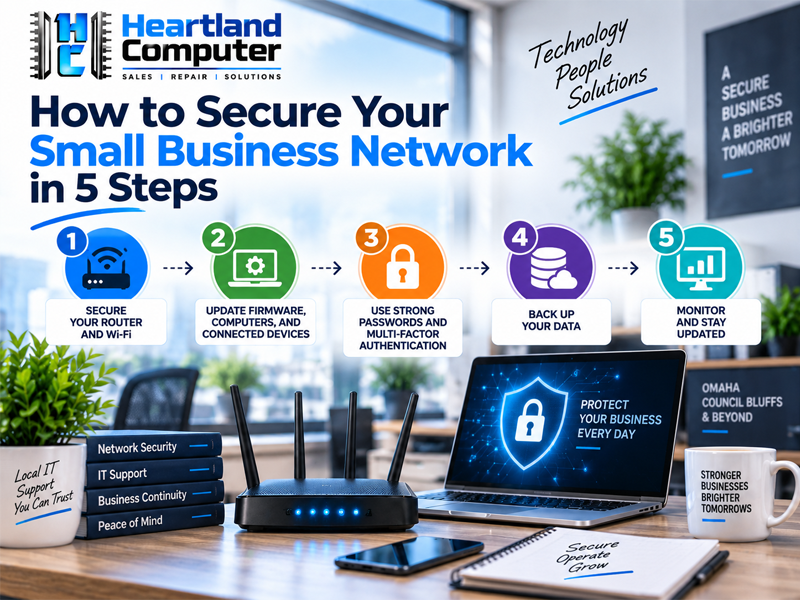
1. Secure Your Router and Wi-Fi
Your router controls how devices connect to the internet and to one another. It is one of the most important pieces of equipment in your office network.
Start with these basic improvements:
- Change the router’s default administrator username and password.
- Use a strong, unique Wi-Fi password.
- Turn on WPA2 or WPA3 encryption.
- Disable remote management unless you specifically need it.
- Disable WPS if it is not required.
- Rename the wireless network so it does not reveal the router brand or model.
- Keep the router and wireless access points in a secure location.
- Create a separate guest Wi-Fi network.
Your main business Wi-Fi should be limited to company-owned or managed devices whenever possible. Visitors, personal phones, and other temporary devices should use a guest network that cannot access shared folders, servers, printers, or payment systems.
For example, a dental office in Omaha may need separate network access for staff computers, guest Wi-Fi, security cameras, and specialized equipment. A small retailer in Council Bluffs may need to separate employee devices from point-of-sale systems. The right setup depends on your business, equipment, and daily workflow.

Changing a few settings may be enough for a very small office. Other businesses may need a more complete router configuration, firewall review, or wireless network redesign. Our computer networking services can help you review the current setup and make improvements without guesswork.
2. Update Firmware, Computers, and Connected Devices
Security updates are designed to fix problems that manufacturers and software developers discover over time. Delaying updates can leave your network exposed to known vulnerabilities.
Create a simple update routine for:
- Routers and firewalls
- Wireless access points
- Network switches
- Desktop computers and laptops
- Servers
- Printers
- Security cameras
- Point-of-sale systems
- Smartphones and tablets used for business
- Operating systems, browsers, and business applications
Turn on automatic updates where appropriate. For business-critical systems, updates should also be reviewed and scheduled so they do not interrupt your busiest work hours.
Do not forget about devices that are easy to overlook. An old printer, camera, or network storage device may still be connected to your network even if nobody actively manages it. Check the manufacturer’s website or management portal for firmware updates. If a device is no longer supported, consider replacing it.
A small business does not need a complicated technology department to manage updates. However, someone should know what devices are connected, which systems are important, and when maintenance is due. A current equipment list makes this process easier.
Heartland Computer can help with device setup, network troubleshooting, operating system support, security configuration, and ongoing managed IT support. We can review your current technology and recommend only the improvements that make sense for your budget and business goals.
3. Use Strong Passwords and Multi-Factor Authentication
A strong network also depends on strong account security. Passwords protect email, cloud storage, accounting software, payroll systems, remote access, and administrator accounts.
Use these password practices:
- Create a unique password for every important account.
- Use passwords or passphrases that are at least 12 characters long.
- Never reuse a business password for a personal account.
- Change default passwords on routers, printers, cameras, and other devices.
- Use a reputable password manager.
- Remove accounts that former employees no longer need.
- Give employees only the access required for their jobs.
Next, turn on multi-factor authentication, often called MFA. MFA requires a second verification step after a password, such as an authenticator app, security key, or temporary code.
MFA should be enabled for:
- Business email
- Microsoft 365 or Google Workspace
- Banking and payroll accounts
- Accounting software
- Remote access and VPN accounts
- Cloud storage
- Router and firewall administration
- Password manager accounts
MFA is especially important for small businesses because one stolen password can affect several systems. MFA provides another layer of protection if a password is accidentally shared or entered into a fake login page.
Your team should also know how to handle suspicious messages. If an email asks for a password, payment change, wire transfer, or urgent login, verify the request through a trusted phone number or another known method. A short pause can prevent a costly mistake.
4. Segment and Monitor Your Network

Network segmentation means separating different types of devices and users instead of placing everything on one large network. This can limit the impact of a compromised computer or infected device.
A typical small-business network may include separate areas for:
- Employee computers
- Guest Wi-Fi
- Servers and shared storage
- Printers
- Security cameras
- Smart devices
- Point-of-sale equipment
- Voice-over-IP phones
These areas may be separated using guest networks, VLANs, firewall rules, or different wireless network names. The correct approach depends on your router, switches, access points, and business applications.
Segmentation can also improve troubleshooting. If a camera or guest device has a problem, it is less likely to interfere with the computers your staff uses to serve customers.
Monitoring is the next part of this step. You do not need to stare at technical dashboards all day. Instead, establish a practical review process:
- Check for unfamiliar devices.
- Review router and firewall alerts.
- Watch for repeated failed login attempts.
- Investigate unusual data transfers.
- Look for computers that are unusually slow or frequently disconnected.
- Confirm that antivirus and endpoint protection are active.
- Review remote access accounts regularly.
This is where managed IT support in Omaha can make a real difference. With a support plan, Heartland Computer can help monitor, maintain, troubleshoot, and improve your technology over time. We can also provide remote assistance when appropriate and on-site service when the problem requires hands-on help.
5. Maintain Tested Backups and an Incident Response Plan
Network security is not complete without a recovery plan. Computers can fail. Files can be deleted. A laptop can be lost. A software problem or security incident can interrupt business operations.
Regular backups give you a way to restore important information. Back up more than documents. Depending on your business, you may need to protect:
- Customer records
- Accounting files
- Payroll information
- Shared folders
- Email and cloud data
- Databases
- Website files
- Server configurations
- Important business applications
Keep more than one backup copy, and make sure at least one backup is isolated from the main network. If every backup is connected and accessible with the same account, one incident could affect all of them.
Backups also need to be tested. A backup that has never been restored is only an assumption. Schedule regular test restores to confirm that files are complete, readable, and available when needed.

Your incident response plan does not need to be a large manual. A one-page plan can include:
- Who should be contacted first.
- Which computer, account, or device should be disconnected.
- Who handles communication with employees, customers, vendors, and insurance providers.
- Where backup information is stored.
- How systems will be restored.
- Which technology provider can help investigate and repair the problem.
Heartland Computer provides data backup and recovery services, including help setting up dependable backup solutions and recovering data when files become inaccessible. We can also help with cybersecurity cleanup, remote support, and practical recovery planning.
A Secure Network Starts with a Clear Review
You do not have to make every technology decision at once. Start by reviewing your router, Wi-Fi, passwords, updates, connected devices, and backups. Then create a short list of improvements based on the systems your business depends on most.
For businesses in Omaha, Council Bluffs, and the surrounding metropolitan area, Heartland Computer offers local support backed by more than 20 years of experience. We have helped customers with network design, router configuration, server support, cybersecurity, data backup, remote assistance, and on-site service.
We will explain what needs attention, what can wait, and what fits your budget. No confusing jargon. No one-size-fits-all recommendations. Just friendly, dependable support and a clear next step.
Do you have questions about your business network? Contact Heartland Computer for a free consultation. We can review your current setup and help you create a practical security plan. When technology becomes complicated, we make it work.
For additional general guidance, review the Federal Trade Commission’s small business cybersecurity resources and the NIST Cybersecurity Framework.















Join the conversation
Questions about this article? Ask below — our team reads every comment.