
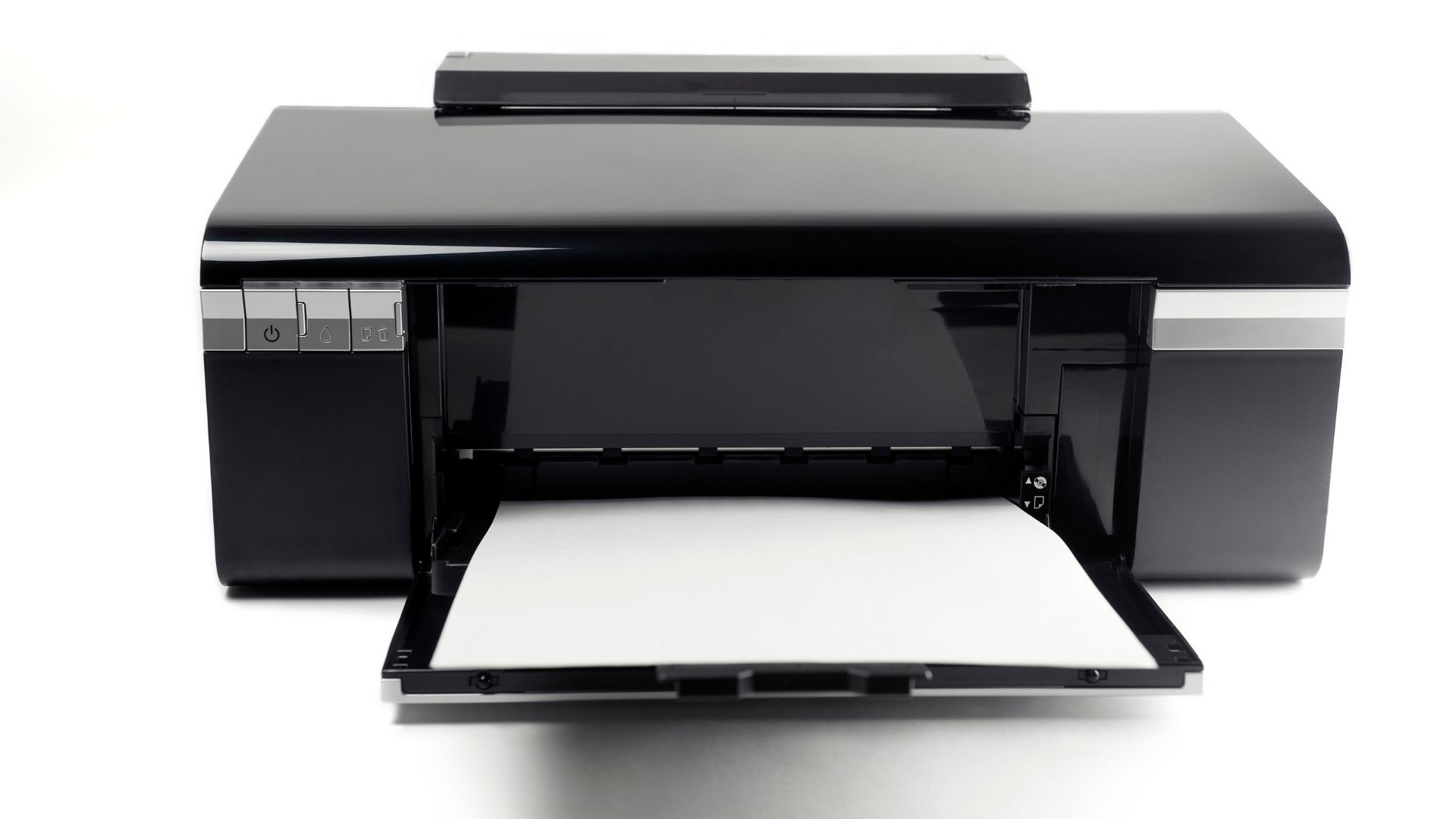
Smart Printer Not Connecting to Wi-Fi? Here's the Fix (2025)
A smart printer not connecting to Wi-Fi stops you printing from phones, laptops, or the cloud. It’s frustratingly common in 2025. Don't worry – most fixes are quick!
Top Reasons Your Smart Printer Won't Connect:
-
Wrong Password: Check caps lock! Re-enter carefully.
-
Signal Problems: Walls, distance, or interference (microwaves, other devices) weaken Wi-Fi.
-
Old Software: Outdated printer firmware or computer drivers cause issues.
-
Router Settings: Security protocols (like WPA3), guest networks, or firewalls can block printers.
Quick Fixes That Work for Most Printers:
-
Power Cycle Everything: (75% Success!)
-
Turn off your printer. Unplug it.
-
Unplug your router for 30 seconds. Plug it back in & wait 2-3 minutes.
-
Turn your printer back on. Try connecting.
-
-
Re-Enter Wi-Fi Password: (65% Success!)
-
Go into your printer's Wi-Fi settings.
-
"Forget" your current network.
-
Select your Wi-Fi name (SSID) again and carefully type the password.
-
-
Check Router Band: Many printers only work on 2.4GHz.
-
Log into your router (usually
192.168.1.1or192.168.0.1). -
Make sure your 2.4GHz network is ON and has a different name than your 5GHz network.
-
Connect your printer to the 2.4GHz network.
-
-
Update! Install the latest printer firmware (via its menu or manufacturer's website) and printer drivers on your computer.
Epson-Specific Tips (2025):
-
Reset Epson Connect: Go to printer settings > Network > Restore Network Settings. Re-setup using the Epson Smart Panel app.
-
Try a Static IP: Reserve an IP address for your printer in your router settings to prevent drops.
HP-Specific Tips (2025):
-
Reset with HP Smart App: Uninstall the HP Smart app everywhere. Reset printer to factory defaults. Reinstall the app and let it guide setup.
-
Run HP Print and Scan Doctor: Download this free tool from HP's website for automated fixes.
Crucial Router Tweaks:
-
Security Protocol: If your printer is older, set router security to WPA2/WPA3 Mixed Mode instead of only WPA3.
-
Avoid Guest Networks: Guest networks often block printer communication. Connect your printer to your main Wi-Fi network.
Prevent Future Problems:
-
Placement: Keep printer within 30ft of router, away from interference sources.
-
Updates: Check for printer firmware & router updates monthly/quarterly.
-
Restart: Power cycle your router weekly.
FAQs: Smart Printer Not Connecting to Wi-Fi
-
Connected but won't print? Check print queue, driver, or try a different file type.
-
Keeps disconnecting? Likely signal issues, router overload, or incorrect band (use 2.4GHz).
-
Use without Wi-Fi? Yes! Use USB, Ethernet, or Wi-Fi Direct (for mobile printing).
-
WPS setup? Not recommended. Manually entering the password is more reliable and secure.
-
Router compatible? Ensure it supports 2.4GHz and WPA2 security at minimum.
Still Stuck? Consider:
-
A Wi-Fi extender if signal is weak.
-
Upgrading to a Wi-Fi 6 router.
-
Contacting your printer's manufacturer support.
Get Connected Now! Follow these smart printer not connecting to Wi-Fi steps to solve your 2025 printing headaches fast. Focus on the quick fixes first – they solve most problems!
🛠️ Need Local Computer Repair in Omaha or Council Bluffs?
Don't stress over hardware failures or slow devices. Heartland Computer offers fast, reliable walk-in repairs with no appointment necessary!
📞 Call Us:
Omaha- 402-502-7040
Council Bluff- 712-256-8686
📍 Visit Us: Stop by our Council Bluffs or Omaha repair shops today for immediate bench diagnostics.



















Join the conversation
Questions about this article? Ask below — our team reads every comment.