
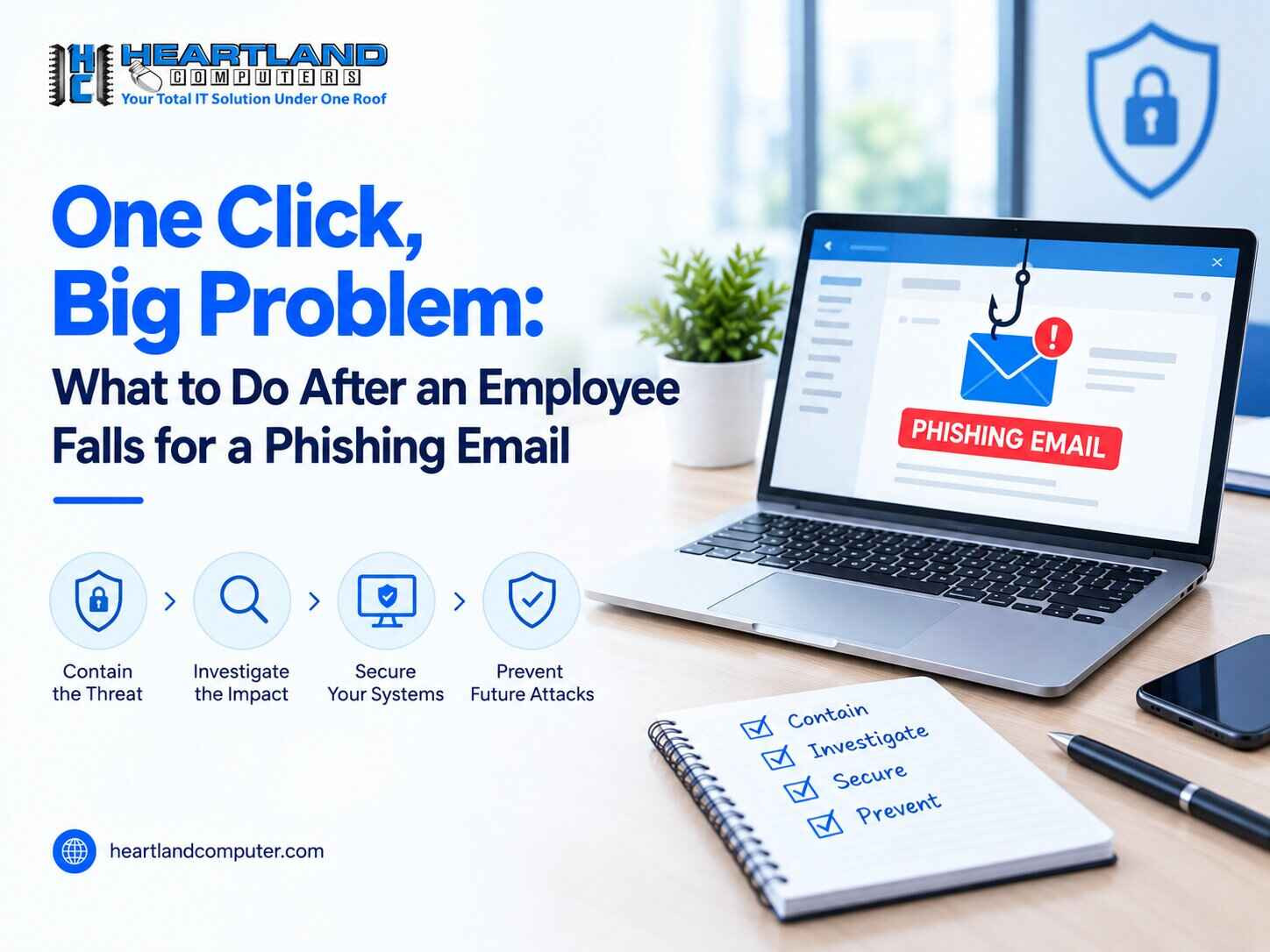
One Click, Big Problem: What to Do After an Employee Falls for a Phishing Email
An employee receives what appears to be a Microsoft 365 password expiration warning, clicks the link, and signs in. A minute later, something feels odd on the page. Perhaps it was a vendor invoice that appeared to be entirely normal until it was not.
A phishing email does not have to result in disaster. What occurs over the next few minutes is more important than the email itself. The priorities are straightforward: contain the situation, secure the affected accounts and devices, and document what happened - immediately, calmly, and without criticizing the individual who spoke out.
For a broader, proactive review of your company’s defenses including MFA, email security, backups, devices, and employee training use Heartland Computer’s Small-Business Cybersecurity Checklist to identify gaps and prioritize what to fix next.
What to do immediately
- Stop interacting with the message- no more clicking, replying, or entering information.
- Have the employees report exactly what they did, without leaving anything out.
- Disconnect the device if malware or a downloaded attachment is possible.
- From a known-clean device, change any passwords entered and check MFA settings.
- Contact your IT person or provider right away.
- Save email, link, and any screenshots for review.
First, Find Out What the Employee Actually Did
The appropriate response is determined by what occurred, rather than how suspicious the email appeared. "I clicked a link" and "I clicked a link and typed my password" elicit distinct replies.
The five most common circumstances are: opening an email without clicking, visiting a link without entering data, typing a password, accessing or downloading a file, or approving an unexpected MFA prompt.
|
What happened? |
Immediate risk |
What to do next |
|
Opened the email only |
Low |
Report it; no further action usually needed |
|
Clicked a link, entered nothing |
Possible tracking |
Report it; watch the device |
|
Entered a password |
Account takeover |
Change password from a clean device |
|
Opened or downloaded an attachment |
Malware, ransomware |
Disconnect device; have IT inspect it |
|
Approved a suspicious MFA prompt |
Access without a password |
Treat as compromised; revoke sessions |
The First 10 Minutes After a Phishing Email
- Stop interacting with the message but keep it available, don't delete it.
- Report it through your company's process or contact IT using a trusted number or method.
- Isolate the device if a file was opened, software installed, or anything looks unusual.
- Note the basics: time received, sender, subject, what was clicked or entered, accounts involved, and whether an MFA prompt was approved.
- Don't forward the message widely to "warn everyone." Let IT decide how to preserve it.
A single phishing email is frequently the precursor to credential theft, malware, or business email breach, in which a hijacked mailbox is used to deceive coworkers, clients, or vendors. Acting quickly restricts how far this can go.
If a Password Was Entered, Secure the Account Fast
If credentials were typed into a fake sign-in page, treat that password as compromised.
- Change the password immediately, from a device you know is clean.
- Use a new password, not a variation of the old one.
- Secure the email account first, it's usually the key to resetting everything else.
- Review sign-in sessions, forwarding rules, recovery addresses, and connected apps through your Microsoft 365 or Google Workspace admin, and revoke anything unfamiliar.
- Check MFA settings and remove authentication methods you don't recognize.
- If that password was reused elsewhere, change it there too.
A regular phishing email is sent to many people in the hope that someone will respond. Spear phishing is targeted, using a legitimate name, title, vendor relationship, or recent events to appear believable, so even careful employees are duped.
If an Attachment Was Opened or Software Was Downloaded
An opened attachment can turn into a device-level problem, not just an account problem.
- Disconnect the device from the network if you're able to.
- Stop using the device, don't keep working "just to finish something."
- Don't run cleanup tools or reinstall the operating system yourself before someone qualified has looked at it; that can erase evidence.
- Have IT or a security provider inspect the device and check whether other systems could be affected.
Attachment-based malware can result in compromised credentials, data loss, remote access, or ransomware. Backups are important in this situation; a well-tested backup and recovery plan can mean the difference between a bad day and a shutdown.
If suspicious activity includes encrypted or renamed files, inaccessible shared folders, or a ransom note, follow Heartland Computer’s Ransomware Response Plan for Small Businesses to contain the incident, protect backups, and recover safely.
How to Report a Phishing Email at Work Without Making Things Worse
Reporting quickly is far more useful than trying to quietly fix it and hope no one notices.
- Use your email platform's built-in Report Phishing button if available.
- Tell IT or your security contact what happened, using a number or address you already know is legitimate.
- Be specific about what happened: click, credentials entered, file opened, MFA approved, or reply sent.
- Note the sender, subject, time received, and screenshots if possible.
- Never use a link, phone number, or attachment inside the message to "verify" it.
Employees who speak up quickly away, even about little mistakes, are doing the right thing. A culture in which people are scared to disclose phishing email interactions is more destructive than a single click.
Common Phishing Email Examples Small Businesses Should Recognize
Fake Microsoft 365 or Google Workspace sign-in alerts
To steal credentials, these resemble a password expiration alert. Red flags include urgent wording, an incorrect sender, and a link that does not connect to your actual sign-in page. Check by launching the service directly in your browser.
Vendor invoice and payment-change requests
These target accounts are payable with a familiar invoice or a request to update banking information. Red indicators include a new bank account, same-day pressure, and changed vendor addresses. Call a previously known contact number to confirm.
CEO or manager impersonation emails
These employ a real name and title to seek wire transfers, gift cards, or sensitive information. Red flags include urgency, confidentiality requirements, and a mismatched reply-to address. Verify in person or over the phone.
Fake package, voicemail, or document-sharing notifications
These rely on curiosity to generate a click. Red flags include generic greetings, mismatched sender domains, and links that do not correspond to the service advertised. Verify by logging into the actual service.
Fake antivirus, VPN, or browser-security alerts
These scare users into installing malicious software. Red flags: alarming pop-up language and pressure to "download now” a pattern covered in fake antivirus and VPN apps that install malware.
How to Stop Phishing Emails from Reaching Your Team
No filter catches everything but layered protection reduces how often phishing lands and limits the damage.
- Turn on MFA for email, cloud storage, remote access, and admin accounts.
- Keep devices, browsers, and software updated; use endpoint protection and email filtering.
- Require a second person's approval for banking or payment-detail changes.
- Limit administrative access and use unique passwords with a password manager.
- Back up critical data and test restoring it, see this comparison of cloud storage versus backup for small businesses.
- Give employees a reporting process that takes seconds and run recurring awareness training with a periodic phishing test for employees, kept supportive rather than a "gotcha."
For a broader look at where your business stands, the small-business cybersecurity checklist covers 30 areas worth reviewing beyond email alone.
When Should a Small Business Call IT Support After a Phishing Attack?
Reach out promptly if any of the following apply:
- A password was entered on a fake page.
- An attachment was opened or downloaded.
- An MFA prompt was approved unexpectedly.
- A mailbox appears to have messaged customers or coworkers without your knowledge.
- A payment, payroll, or banking request was acted on.
- Files are encrypted, renamed, or behaving strangely.
- More than one employee interacted with the message.
- No one in-house can confidently review accounts and devices.
Businesses in Omaha and Council Bluffs can contact Heartland Computer for help assessing phishing incidents, securing accounts and devices, checking for malware, and strengthening defenses. Scope and response time depend on what's involved, and not every case can be resolved remotely. Learn more about Heartland Computer's IT and computer repair services.
A Simple Phishing Response Checklist for Employees
- Stop. Don't click again, reply, or enter more information.
- Report the message right away and be honest about exactly what you did.
- Disconnect the device if a file was opened or it's acting strangely.
- Change any compromised passwords from a clean device.
- Wait for IT's go-ahead before going back to normal work on that device.
- Watch for follow-up password resets, MFA prompts, or vendor/payment requests.
FAQs
Q. What should I do if I click a phishing link at work?
Stop dealing with the message and notify IT immediately, even if you did not enter any information. If the link took you to a phony sign-in screen and you're not sure what you entered in, take it as a credential issue and have IT investigate the device and any associated accounts.
Q. What if an employee entered a password into a phishing site?
Change the password promptly from a clean device, beginning with the email account, which frequently controls resets elsewhere. Examine sign-in sessions, forwarding rules, and associated apps for anything unusual, and see whether the same password was used elsewhere that also needs to be changed right immediately.
Q. How can I report a phishing email?
Use your email platform's built-in "Report Phishing" function, if available, and notify IT or your security contact via a trusted phone number or ticket system. Include the sender, topic line, time received, and specifics on what you clicked, input, or downloaded so that they can accurately assess the danger.
Q. What is spear phishing?
Spear phishing is a type of phishing assault that leverages specific facts to make itself appear authentic, such as a true name, work title, vendor relationship, or recent occurrence. It's more difficult to detect than a generic phishing email because it's based on information the attacker already possesses about your company.
Q. How can small businesses prevent phishing attacks?
No single tool can prevent every phishing attempt, but layered protections lower the chances and limit the damage: MFA, up-to-date software, email filtering, unique passwords, tested backups, and a reporting system that staff will really utilize. Ongoing awareness training, such as quarterly phishing tests, assists employees in recognizing new approaches as they emerge.
Need Cybersecurity Help After a Phishing Email in Omaha or Council Bluffs?
If your company is faced with a suspected phishing incidence, report it immediately, secure the accounts and devices involved, and avoid DIY remedies that could complicate the investigation. Heartland Computer can assist with determining what happened, detecting malware, securing compromised accounts, and planning backup and recovery. To talk through what you're seeing, contact Heartland Computer.
Sources:
https://www.ftc.gov/business-guidance/small-businesses/cybersecurity
https://learn.microsoft.com/en-us/defender-office-365/responding-to-a-compromised-email-account
https://www.cisa.gov/news-events/news/avoiding-social-engineering-and-phishing-attacks
Disclaimer: This article is for general informational purposes only and is not legal, insurance, or compliance advice. Every phishing incident is different, and reporting obligations vary by industry, location, and the data involved. Consult your attorney, cyber-insurance provider, or a qualified IT security professional for guidance specific to your situation. Heartland Computer cannot guarantee that any step described will fully prevent, contain, or reverse a phishing-related incident.

















Join the conversation
Questions about this article? Ask below — our team reads every comment.